Bash Files for Interactive Non Login Shells
Bash allows for various files that are read and executed upon bash invocation. It could be a bit tricky to navigate these files, especially when edited to personal needs. I’ll share a quick post about my setup, I think it helps keep things neat and tidy.
First of all, when you start digging into files like /etc/profile, ~/.bash_profile, ~/.bash_login, ~/.profile, ~/.bashrc, you first read something like:
When  bash is invoked as an interactive login shell, or as a non-interactive shell with the --login option, it first reads and executes commands from the
file /etc/profile, if that file exists. After reading that file, it looks for ~/.bash_profile, ~/.bash_login, and ~/.profile, in that order, and reads
and executes commands from the first one that exists and is readable. The --noprofile option may be used when the shell is started to inhibit this be‐
havior.

When an interactive login shell exits, or a non-interactive login shell executes the exit builtin command, bash reads and executes commands from the file
~/.bash_logout, if it exists.
But what the hell is login, interactive and non-interactive shell?
Interactive shell is simply the one you type your commands into. Non-interactive shell is your scripts you just execute and then wait for the recult code, the commands inside your script are run by a non-interactive shell. Login shells are usually interactive, they are those shells that you use for logging into a console (F2, etc.), trough SSH, or via su -.
Having said that, there’re different files that get read and executed for these shells.
Let’s have a look at an interactive non login shell. The man page for bash say:
When an interactive shell that is not a login shell is started, bash reads and executes commands from ~/.bashrc,
I also think that interactive non login shell is the most common for home users. Such a shell will probably be started more often than any other shell, so let’s stick to this option to show how I organise the files that get executed after this shell is started.
~/.bashrc could be really long, but the point is that when you want to add some other commands (tweak your command prompt, etc.), it should most likely go into this file. As you add more commands, it can grow so much that you lose yourself in it. That’s where some organisation comes in.
I simply create ~/.bash_aliases and ~/.bash_export files. It could be already obvious what I put in them, but let’s have a look at oth of them:
$ cat .bash_aliases
# some more ls aliases
alias ls='ls --color=auto'
alias grep='grep --colour=auto'
alias egrep='egrep --colour=auto'
alias fgrep='fgrep --colour=auto'
alias ll='ls -lah'
alias la='ls -lha'
alias l='ls -l'
alias em='emacs -nw'
alias dd='dd status=progress'
alias _='sudo'
alias _i='sudo -i'
alias cls='clear'
alias note='/home/pavel/.local/bin/NixNote2-x86_64.AppImage'
alias rst='reset'
alias cd..='cd ..'
alias df='df -h'                          # human-readable sizes
alias free='free -m'                      # show sizes in MB
alias more=less
alias lock=xflock4
alias g=giggle
alias s="xfce4-screenshooter -r -c -s ~/Pictures/screenshots >/dev/null 2>&1"
alias lspic=viewnior
alias running_services="systemctl list-units --type service --state running"
alias enabled_services="systemctl list-unit-files --type service --state enabled"
alias all_services="systemctl list-unit-files --type service"
alias failed_services="systemctl list-units --type service --state failed"
#alias start_docker="systemctl start docker.service"
#alias stop_docker="systemctl stop docker.service"
alias rm="rm -v"
alias which="which -a"
alias selenium_server="java -jar ~/selenium-standalone-servers/selenium-server-standalone-3.141.59.jar -host 127.0.0.1"
alias swappiness="cat /proc/sys/vm/swappiness"
$ cat .bash_export
export EDITOR="vim"
export VISUAL="vim"
export SYSTEMD_EDITOR="vim"
export PATH="${PATH}:/home/pavel/.local/bin:$(ruby -e 'puts Gem.user_dir')/bin"
Nice and clean. When I need to add a new alias, I simply add a new line into ~/.bash_aliases.
One more thing to do. These files do not get read by an interactive non login shell, nor by any other. In order to change that, I need to edit ~/.bashrc:
# aliases
if [[ -f ~/.bash_aliases ]]; then
	. ~/.bash_aliases
fi

# export variables
if [[ -f ~/.bash_export ]]; then
	. ~/.bash_export
fi
As for a login shell, it’s about different files:
/etc/profile~/.bash_profile~/.bash_login~/.profile
Furthermore, the files are executed in this order. Plus when I have a look into /etc/profile, it also looks for /etc/bash.bashrc under certain conditions:
# Source global bash config
if test "$PS1" && test "$BASH" && test -z ${POSIXLY_CORRECT+x} && test -r /etc/bash.bashrc; then
	. /etc/bash.bashrc
fi
And when I have a look into ~/.bash_profile, I can see:
$ cat .bash_profile
#
# ~/.bash_profile
#

[[ -f ~/.bashrc ]] && . ~/.bashrc
So in the end, my ~/.bashrc is excuted even for interactive login shells.
Instead of cluttering my ~/.bashrc with many export and aliases, I keep them separated in the two files. To me, this looks a bit more organised.
One more picture to summarize interactive and login shells and the files that are executed when these shells are started: 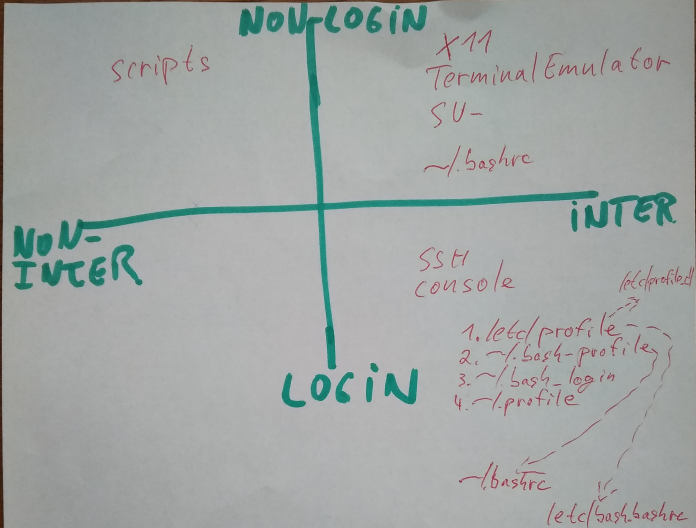
Note: contents of the files presented in this article could, and likely will, differ in other distributions. You need to understand the logic and apply it on your particular distro.